
Change hostname in Centos 7
On a CentOS Linux 7 server you can use any one of the following tool to manage hostnames:
- hostnamectl command : Control the system hostname. This is recommended method.
- nmtui command : Control the system hostname using text user interface (TUI).
- nmcli command : Control the system hostname using CLI part of NetworkManager.
Types of hostnames
The hostname can be configured as follows
- Static host name assigned by sysadmin. For example, “server1”, “wwwbox2”, or “centos7.winnix.local”.
- Transient/dynamic host name assigned by DHCP or mDNS server at run time.
- Pretty host name assigned by sysadmin/end-users and it is a free-form UTF8 host name for presentation to the user. For example, “Vivek’s netbook”.
Method #1: hostnamectl command
Let us see how to use the hostnamectl command.
How do I see the host names?
$ hostnamectl

## OR ##

$ hostnamectl status
Sample outputs:Static hostname: localhost.localdomain Icon name: computer-vm Chassis: vm Machine ID: 0f5af28b7bae42dcbcf0de85ae9be652 Boot ID: 054432a36e244bd78114c19a0f89edc6 Virtualization: vmware Operating System: CentOS Linux 8 (Core) CPE OS Name: cpe:/o:centos:centos:8 Kernel: Linux 4.18.0-147.8.1.el8_1.x86_64 Architecture: x86-64How do I set the host name?
The syntax is:
# hostnamectl set-hostname Your-New-Host-Name-Here

# hostnamectl set-hostname "Your New Host Name Here" --pretty

# hostnamectl set-hostname Your-New-Host-Name-Here --static

# hostnamectl set-hostname Your-New-Host-Name-Here --transient
To set host name to “Centos7Serv”, enter:
# hostnamectl set-hostname Centos7Serv
To set static host name to “centos7.winnix.local”, enter:
# hostnamectl set-hostname centos7.winnix.local --static
To set pretty host name to “Centos7 Winnix Tech”, enter:
# hostnamectl set-hostname "Centos7 Winnix Tech" --pretty
To verify new settings, enter:
# hostnamectl status
Sample outputs:Static hostname: centos7.winnix.local Pretty hostname: Centos7 Winnix Tech Icon name: computer-vm Chassis: vm Machine ID: 0f5af28b7bae42dcbcf0de85ae9be652 Boot ID: 054432a36e244bd78114c19a0f89edc6 Virtualization: vmware Operating System: CentOS Linux 7 (Core) CPE OS Name: cpe:/o:centos:centos:7 Kernel: Linux 4.18.0-147.8.1.el8_1.x86_64 Architecture: x86-64How do I delete a particular host name?
The syntax is:
# hostnamectl set-hostname ""

# hostnamectl set-hostname "" --static

# hostnamectl set-hostname "" --pretty
How do I change host name remotely?
Use any one of the following syntax:
# ssh root@server-ip-here hostnamectl set-hostname server1
OR set server1 as host name on a remote server called 192.168.1.42 using ssh:
# hostnamectl set-hostname server1 -H root@192.168.1.42Method #2: nmtui command
You can set host name using nmtui command which has text user interface for new users:
# nmtui
Sample outputs: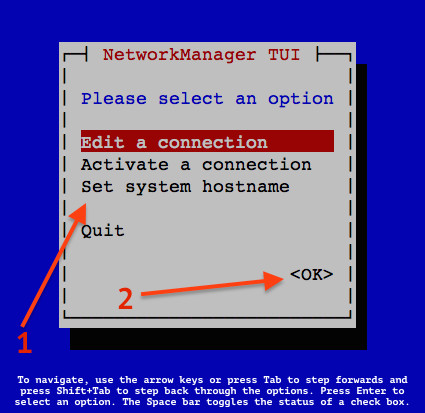
Fig.01: Use nmtui to set hostname on a CentOS 7
Use the Down arrow key > select the “Set system hostname” menu option > Press the “Ok” button:
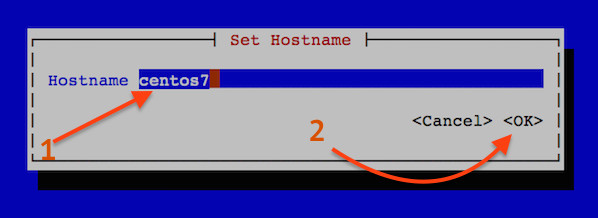
Fig.02: Set hostname
You will see the confirmation box as follows:
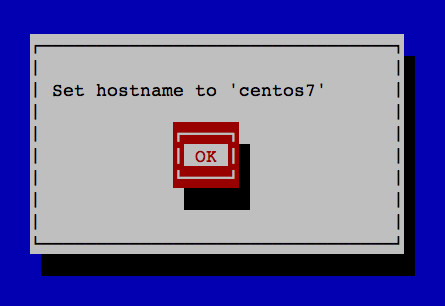
Fig.03: New hostname confirmed
Finally, restart hostnamed service by typing the following command
# systemctl restart systemd-hostnamed
To verify changes, enter:
# hostnamectl status
Sample outputs:[root@winnix ~]# hostnamectl status
 Static hostname: centos-7-rc
         Icon name: computer
           Chassis: n/a
        Machine ID: b5470b10ccfd49ed8e4a3b0e953a53c3
           Boot ID: f79de79e2dac4670bddfe528e826b61f
    Virtualization: oracle
  Operating System: CentOS Linux 7 (Core)
       CPE OS Name: cpe:/o:centos:centos:7
            Kernel: Linux 3.10.0-229.1.2.el7.x86_64
      Architecture: x86_64
Fig.04: CentOS 7 / RHEL View Host Name Details Using hostnamectl Command
Method #3: nmcli command
The nmcli is a command line tool for controlling NetworkManager and reporting network status.
To view the host name using nmcli command:
The syntax is:
# nmcli general hostnameTo set the host name using nmcli command:
The syntax is:
# nmcli general hostname R2-D2

# nmcli general hostname server42.cyberciti.biz
Finally, restart the systemd-hostnamed service:
# systemctl restart systemd-hostnamed
Change hostname in Centos 6
- Using a text editor, open the server’s /etc/sysconfig/network file.
# sudo nano /etc/sysconfig/network - Modify the
HOSTNAME=value to match your FQDN hostname.HOSTNAME=myserver.domain.com - For internal networking, change the host that is associated with the main IP address for your server (found at /etc/hosts).
127.0.0.1 localhost localhost.localdomain 123.45.67.89 hostname.domain.com hostname -- INSERT -- 2,43-57 ALL - Run the
hostnamecommand. This command lets you change the hostname on the server that the command line remembers, but it does not actively update all programs that are running under the old hostname.[root@defiant ~]# hostname hostname.domain.com [root@defiant ~]# hostname hostname.domain.com [root@defiant ~]# - Restart networking on your server to ensure that changes will persist on restart.
# /etc/init.d/network restart