Setup Rootkit Hunter (rkhunter)

Rootkit Hunter (rkhunter) is a Unix-based tool that scans for rootkits, backdoors and possible local exploits. This guide explains how to install and configure RKHunter on CentOS 5,6 or 7.

Rootkits are self-hiding toolkits secretly installed by a malicious intruder to allow that user to gain access to the server. Rootkit Hunter offers protection by comparing SHA-1 hashes of important files with known good ones in a online database as well as:

    • MD5 hash compare
    • Look for default files used by rootkits
    • Wrong file permissions for binaries
    • Look for suspected strings in LKM and KLD modules
    • Look for hidden files
    • Optional scan within plaintext and binary files

Continue reading →

Setup Spamassasin for DirectAdmin

In this guide I will be explaining how to install and configure SpamAssasin on a Direct Admin based server running CentOS.

SpamAssasin is used for e-mail spam filtering based on content-matching rules. SpamAssassin uses a variety of spam-detection techniques, that includes DNS-based and fuzzy-checksum-based spam detection, Bayesian filtering, external programs, blacklists and online databases.

The program can be integrated with the mail server to automatically filter all mail for a site. It can also be run by individual users on their own mailbox. SpamAssassin is highly configurable; if used as a system-wide filter it can still be configured to support per-user preferences.

Continue reading →

Setup ClamAV Antivirus for DirectAdmin

Clam AntiVirus is a popular open source (GPL) anti-virus toolkit for UNIX, designed for e-mail scanning on mail gateways. It provides a flexible and scalable multi-threaded daemon, a command line scanner and it can detect Trojan horses, viruses, malware and other malicious threats. It also comes with an advanced tool for automatic database updating via the Internet.
This article will guide you through the installation and configuration of ClamAV on a DirectAdmin based web server. Continue reading →

Secure /tmp partition on cPanel using /scripts/securetmp

On Linux systems there are a few temporal directories used for storage, like /tmp, /var/tmp and /dev/shm. This directories are used to store temporary files from different services such as Apache, MySQL, etc.

However, sometimes this directories are also used by crackers and script kiddies to store malicious/malware and virus executables. This malicious scripts can be an open door to send spam, exploit the system as root or spread viruses over the network.

This tutorial will show you how to secure /tmp partition, and also the /dev/shm directory. Continue reading →

How to find c99 shell script hacked files

c99 Shell Scripts are one of the main headache for almost all cPanel server administrators even though they use mod_security and all.

The c99 php (Hypertext Preprocessor) shell script is an awesome piece of hacking script. The only limitation of it being that it needs an unsecured uploader in order to get it uploaded and then the execution part is a piece of cake.
Continue reading →

WHM Server Hardening And Security Basics

A step by step paper how to secure linux server with cPanel/WHM and
Apache installed. By default, linux is not secured enough but you have
to understand there is no such thing as “totally secured server/system”.
The purpose of this paper is to understand how to at least provide some
kind of security to the server.

Let’s start Continue reading →

Windows 8.1 Preview is available

A mentioned earlier, Windows 8.1 will be a free update for Windows 8 consumers later this year through the Windows Store – but today Microsoft has made available a preview version that will allow you to take a first-hand look at many of the new features and improvements in Windows 8.1.

Windows 8.1 Preview download

The Windows 8.1 Preview will be installed through the Windows Store. You will however, have to install an update available on the Preview page. This will enable your Windows 8 to offer the Windows 8.1 Preview update through the Windows Store. You may be required to reboot your system after the installation is over.
windows-8-1-store-1

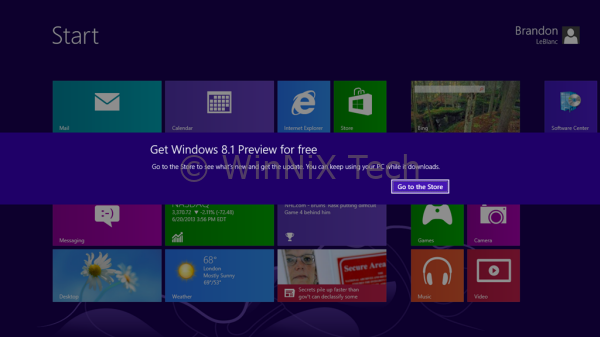
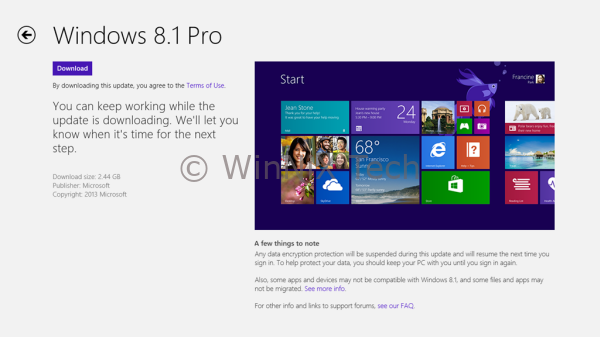
Now visit the Windows Store and click on the Download Windows 8.1 from the Windows Store.  On reboot, you will see a message offering Windows 8.1 Preview. Click  on Go to the Store. Here click on the Download button.
windows-8-1-setup-2

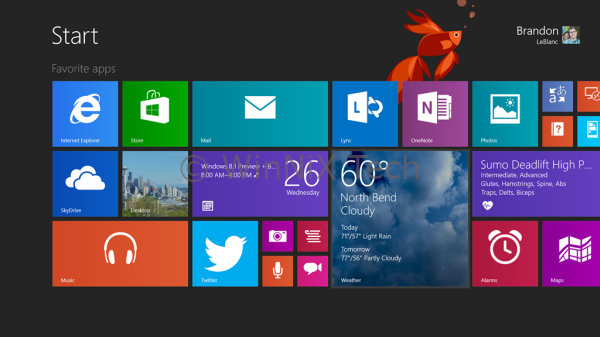
Windows 8.1 Preview will download, carry out some compatibility checks and then commence installation. During installation, your PC may reboot multiple times. Once the installation is complete, you will see the Start Screen of Windows 8.1 Preview.
windows-8.1-start-screen

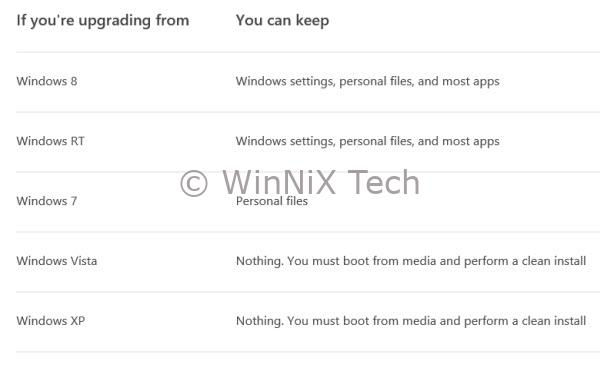
f you as a Windows 8 user decide to install the Windows 8.1 Public Preview version, remember that you will have to reinstall your software, when you rollback to Windows 8 or move over to Windows 8.1 Final RTM version.

If you install the preview version and need to install the final RTM version, when it is released, during this upgrade from the preview to final RTM version, while your data will remain intact, you will later on need to reinstall all your apps.
windows81upgrade

Windows 8.1 Preview will expire on January 15, 2014. Uninstallation is not supported on Windows 8.1 Preview. You may want to read this post on Windows 8 to Windows 8.1 Preview Upgrade Policy before you proceed. So rather than upgrading your Windows 8 to Windows 8.1 Preview, we recommend that you install Windows 8.1 Preview on a separate partition.

If you are on Windows RT and have installed a language pack, please don’t install the Windows RT 8.1 Preview at this time. A fix is coming.

If you’re running Windows 8 Enterprise, you’ll need to install the preview using the ISO. Go here to learn more aboutWindows 8.1 Enterprise.

Windows 8.1 Preview is available in Arabic, English (US), Chinese (Simplified), Chinese (Traditional), French, German, Japanese, Korean, Portuguese (Brazil), Russian, Spanish, Swedish, and Turkish.

Windows 8.1 Preview System requirements

Windows 8.1 Preview works great on the same hardware that powers Windows 8:

  1. Processor: 1 gigahertz (GHz) or faster
  2. RAM: 1 gigabyte (GB) (32-bit) or 2 GB (64-bit)
  3. Free hard disk space: 16 GB (32-bit) or 20 GB (64-bit)
  4. Graphics card: MicrosoftDirectX 9 graphics device with WDDM driver

Windows 8.1 Preview Product key

If you install Windows 8.1 Preview through the Windows Store, you don’t need a product key. If you download the ISO, you’ll need to enter this product key: NTTX3-RV7VB-T7X7F-WQYYY-9Y92F.

Windows 8.1 Preview download

The ISO is available to MSDN and TechNet subscribers. The download size of Windows 8.1 Preview x86 is 2660 MB and of Windows 8.1 Preview x64 is 3580 MB. General public can also get the Windows 8.1 Preview Update or download the Windows 8.1 Preview Client ISO file with the built-in apps, if you want to install the preview on another partition, another PC, or a virtual machine. Once you have downloaded the ISO, you will have to burn the ISO to a DVD, which you can then use to install Windows 8.1 Preview.

Windows 8.1 Preview Product Guide

Click here to download the Windows 8.1 Preview Product Guide. The Windows 8.1 Preview Product Guide for Developers is available here.

Windows 8.1 Release Date, Features Announced

Microsoft has officially announced the features and release date for Windows 8.1, commonly referred to as Windows Blue. Microsoft decided to put to use what it learned from customer feedback how they were using Windows 8. Based on this feedback and new working realities, Microsoft has decided to add new features and functionality to this operating system. Continue reading →